Barcodes in Stockroom Plus
Scanning, Creating, Linking, and Printing (iOS Only)
Stockroom Plus has a full barcode system that lets you link existing product barcodes to items, generate QR codes for items that don't have one, scan barcodes to quickly find or create items, and print barcode labels on Avery-compatible label sheets.
1. Understanding How Barcodes Work
Every item in Stockroom Plus can have one barcode attached to it. A barcode consists of two pieces of data:
- Value — the encoded string (e.g., a UPC number, an EAN, or a Stockroom Plus deep-link URL for QR codes).
- Symbology — the barcode format. Supported formats are: Aztec, Code 39, Code 93, Code 128, UPC-E, EAN-8, EAN-13, ITF-14, and QR.
There are two ways a barcode gets onto an item:
- Link an existing barcode — scan a physical barcode (on a product, shelf label, etc.) and attach it to the item.
- Create a new barcode — generate a QR code containing a unique deep-link URL back to the item within Stockroom Plus.
2. Linking an Existing Barcode to an Item
If your item already has a physical barcode (e.g., a product UPC code), you can scan it and link it to the item record.
From the Item Detail screen:
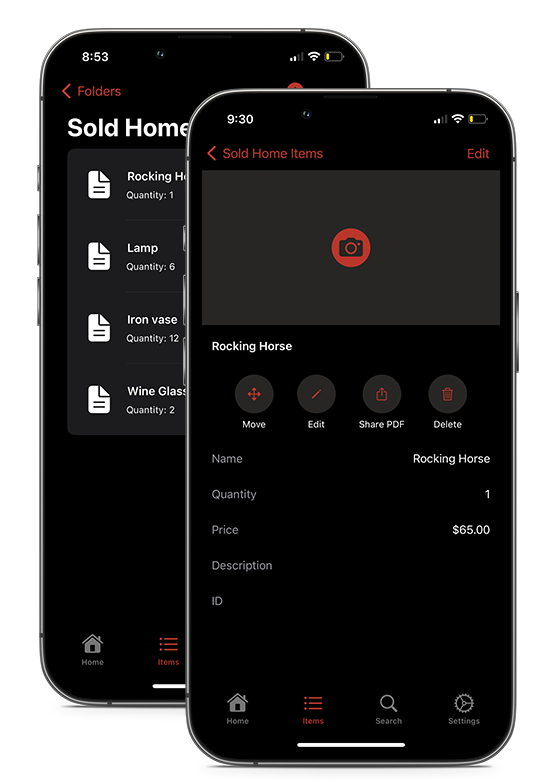
- Navigate to a folder and tap on an item to open its Detail View.
- Scroll to the bottom of the detail screen. If no barcode is linked yet, you'll see two buttons: Link Barcode and Create Barcode.
- Tap Link Barcode. This opens the full-screen camera scanner in Capture mode.
- Point your camera at the barcode on the physical product. The scanner supports all common 1D formats (UPC-E, EAN-8, EAN-13, Code 39, Code 93, Code 128, ITF-14) and 2D formats (QR, Aztec).
- Once the barcode is recognized, it is automatically saved to the item. The scanner closes and you'll see the barcode rendered on the item's detail screen.
Removing a linked barcode: Once a barcode is linked, it appears as a visual barcode card at the bottom of the item detail. If you have edit permissions, an X button appears in the top-right corner of the barcode card. Tap it to unlink the barcode from the item.
3. Creating a QR Code for an Item
If an item doesn't have a physical barcode (e.g., a custom or handmade product), you can generate a unique QR code for it.
- Open the item's Detail View.
- Scroll to the bottom and tap Create Barcode.
- Stockroom Plus generates a QR code containing a deep-link URL that points back to the item.
The QR code is immediately saved to the item and rendered on the detail screen.
This generated QR code can then be printed on a label (see Section 6) and physically attached to the item. When anyone with Stockroom Plus scans that QR code, the app navigates directly to the item's detail view — even resolving the deep link by parsing the embedded URL if the barcode isn't found via a direct database lookup.
4. Scanning Barcodes to Find, Edit, or Create Items
The barcode scanner is available from multiple places in the app — the Folders tab toolbar, inside any folder's item list toolbar, and on iPad in the sidebar. When launched from these locations, it opens in Editor mode, which is a continuous scanning workflow for managing inventory.
Accessing the scanner:
- From the Folders tab: tap the barcode icon in the top-right toolbar.
- From inside any folder (item list): tap the barcode icon in the toolbar.
- On iPad (iOS 18+): use the "Scan Barcode" action in the sidebar.
Choosing a scan action:
At the bottom of the scanner screen, a menu lets you select what happens when a barcode is scanned. The available actions (based on your permission level) are:
| Action | What it does |
|---|---|
| Edit Item | Scans the barcode, finds the matching item, and opens the item editor so you can update any field. If no item matches, you'll see an "Item Not Found" alert. |
| Update Quantity | Scans the barcode, finds the matching item, and opens the quick quantity editor. Useful for rapid stock counting — scan and adjust, scan and adjust. If no item matches, you'll see an "Item Not Found" alert. |
| Create Item | Scans the barcode and creates a new item with that barcode pre-filled. You'll first pick a folder, then fill in the item's fields. If an item with that barcode already exists, you'll see an "Item Already Exists" alert. |
How barcode lookup works:
- The scanner first looks for any item with a matching barcode value.
- Stockroom QR code don't need to be explicitly linked, the scanner will still find the assocaited item.
- For non-QR barcodes that aren't associated with an item, the result depends on your selected action — "Edit" and "Update Quantity" show an error, while "Create" proceeds with the new item flow.
Continuous scanning: In Editor mode, the scanner stays open after each action. When you create an item, a brief checkmark confirmation ("Item Created") appears before the scanner is ready for the next scan. Tap Done to close the scanner when finished.
5. Where Barcodes Appear on Items
Once a barcode is linked to an item, it's displayed at the bottom of the Item Detail View as a rendered barcode card:
- QR codes are shown in a horizontal layout: the QR image on the left with the item's ID (the last segment of the deep-link URL) as caption text to the right.
- 1D barcodes (UPC, EAN, Code 128, etc.) are shown in a vertical layout: the item name above the barcode image, with the full barcode value as caption text below.
The barcode image is generated on-device — it renders a live image from the stored value and symbology, so the barcode is always accurate and scannable even from the screen.
6. Printing Barcode Labels
Stockroom Plus can generate printable barcode label sheets formatted for Avery-compatible label paper, output as a PDF, and sent directly to a printer via AirPrint.
To print barcode labels for a folder's items:
- Navigate into a folder and tap the ... (options) menu in the toolbar.
- Tap Create Barcode Labels.
- If some items don't have barcodes, an alert asks "Some items do not have a barcode linked. Would you like to generate QR codes for these items?"
- Yes — temporary QR codes (containing the item's deep-link URL) are generated for the label sheet. These QR codes are only used for printing and are not saved to the items themselves.
- No — only items that already have barcodes are included on the label sheet; items without barcodes are skipped.
- On the Create Barcodes configuration screen, choose your Barcode Label Size:
| Size | Dimensions | Avery Product | Labels per sheet |
|---|---|---|---|
| Small | 1" x 2-5/8" | Avery 8160 | 30 (3 cols x 10 rows) |
| Large | 2" x 4" | Avery 18163 | 10 (2 cols x 5 rows) |
- Tap Print in the top-right corner.
The app generates a multi-page PDF (US Letter, 8.5" x 11") with each item's barcode and name laid out in the grid. The iOS print dialog (AirPrint) appears, letting you select your printer, number of copies, and print.
Label layout:
- For QR codes: the QR image is rendered on the left side of the label, with the item name in the remaining space to the right.
- For 1D barcodes (UPC, EAN, Code 128, etc.): the item name is printed above the barcode image.
Labels automatically paginate — when a page fills up, a new page begins.
Printing from Bulk Select:
You can also print labels for a specific subset of items:
- In a folder, tap ... → Bulk Select.
- Select the items you want labels for.
- Choose Print Barcodes from the available actions.
This opens the same label configuration screen, but only items that already have a barcode linked are included (no option to generate missing QR codes in this flow).
7. Barcodes and CSV Import
When importing items via CSV, you can map a column to the barcode field. However, CSV-imported barcodes are stored with an "unknown" symbology since the CSV doesn't contain symbology information. This means the barcode value is stored on the item, but to get full scanning and label-printing support, you may want to scan and re-link the physical barcode from the item's detail view to capture the correct symbology.
8. Recommended Barcode Workflow
Here's an efficient workflow for setting up barcodes across your inventory:
For products with existing barcodes (retail, warehouse):
Open the scanner from the Folders or Item List toolbar in Create Item mode. Scan each product's barcode → pick a folder → fill in the item details. The barcode is automatically linked during creation.
For items without barcodes (custom goods, internal assets):
- Create the items normally (manually or via CSV import).
- Either visit each item and tap Create Barcode to generate a persistent QR code, or go to the folder's item list → ... → Create Barcode Labels and choose to generate QR codes during label printing.
- Print the labels and attach them to the physical items.
For ongoing inventory management:
Use the scanner in Update Quantity mode for quick stock counts — scan each item's barcode and adjust the quantity without navigating through menus. Switch to Edit Item mode when you need to update other fields.